Get to the important parts without reading everything twice
Turn long legal documents into clear answers, summaries and key points. Ask follow-up questions and keep the conversation grounded in the documents you are reviewing.
Ask questions across one or multiple documents.
Summarize agreements, pleadings, memos and decisions.
Extract key terms, obligations and important details.
Get source-linked citations with grounded answers.
Verify the answer at the source
AI answers should be easy to check. Citations show which document and passage support the response, so lawyers can verify the context before relying on it.
See what changed. Understand what matters
Compare document versions and surface material differences in a clear format. Review terms, identify issues and focus your attention where legal judgment matters most.
Compare two versions of the same document.
Highlight material changes and their impact.
Review key clauses and potential risks.
Keep source documents visible while you work.
Spend less time moving between documents and tools
Use one workspace to review, draft, compare and refine legal documents.
Move from first instruction to a working draft faster
Create new legal documents from your instructions or use an existing document as a reference. Keep the drafting process inside the same workspace where you review and discuss the document.
Draft new legal documents from natural-language instructions.
Turn approved precedents into new drafts without starting from scratch.
Continue refining the draft through conversation.
Open generated documents directly in the editor.
Make changes without giving up review control
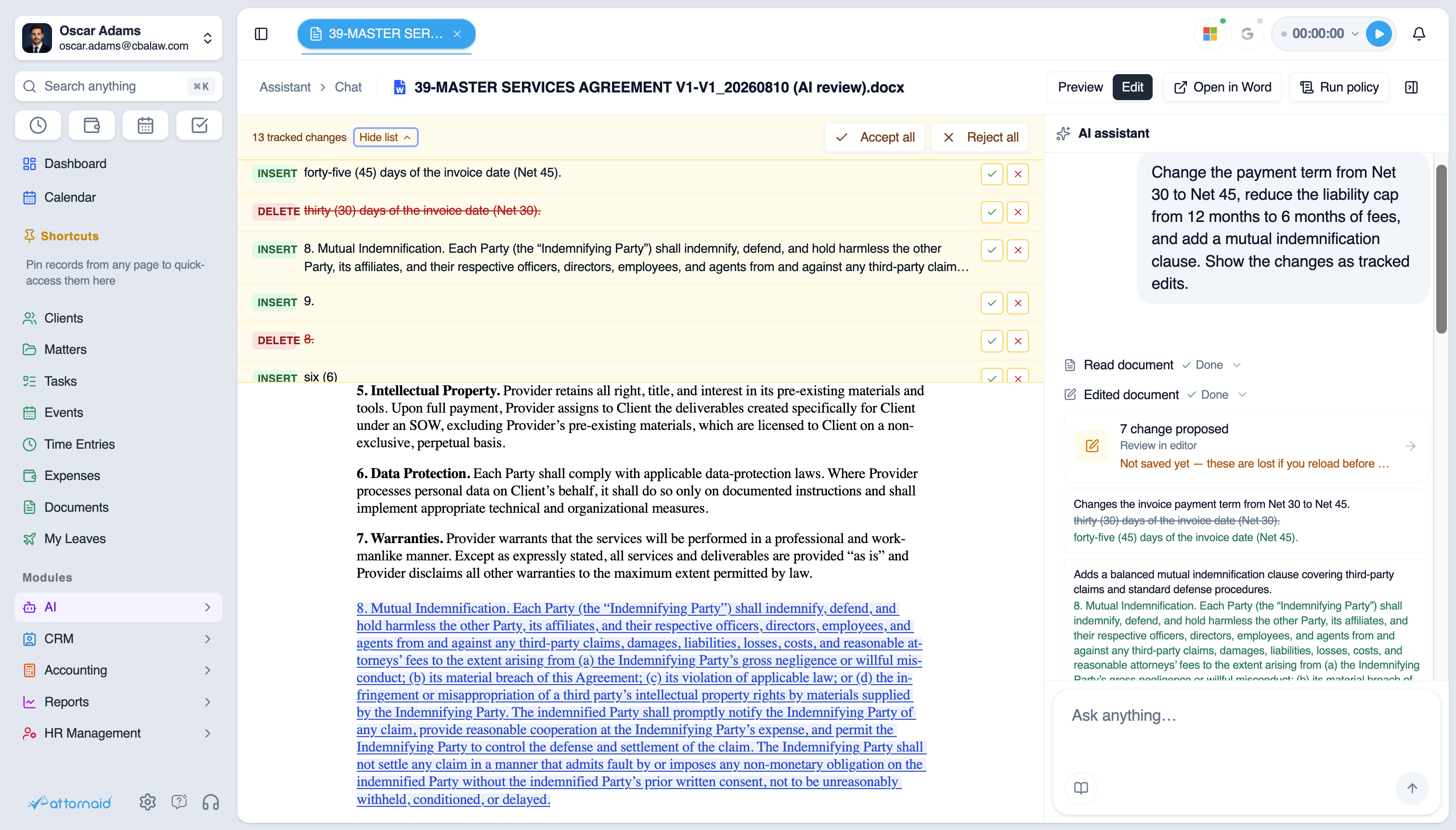
Ask the Attro Legal Assistant to revise clauses, update terms or add new language. Proposed edits appear as tracked changes so you can review what changed before saving anything.
Request document edits in plain language.
Review proposed changes as tracked edits.
Accept or reject changes before saving.
Keep the document and AI conversation side by side.
Keep the document and the AI conversation in the same view
Review the source while you ask questions, refine language or evaluate suggested changes. Stay close to the document instead of moving between a separate chat tool and your legal work.
Read the document while continuing the AI conversation.
Keep review, drafting and editing in the same working surface.
See proposed changes in context before accepting them.
Reduce copy-paste between separate tools.
Bring AI to the documents already in your workflow
Use documents from Attornaid, SharePoint and OneDrive without rebuilding your document process around a separate AI tool.
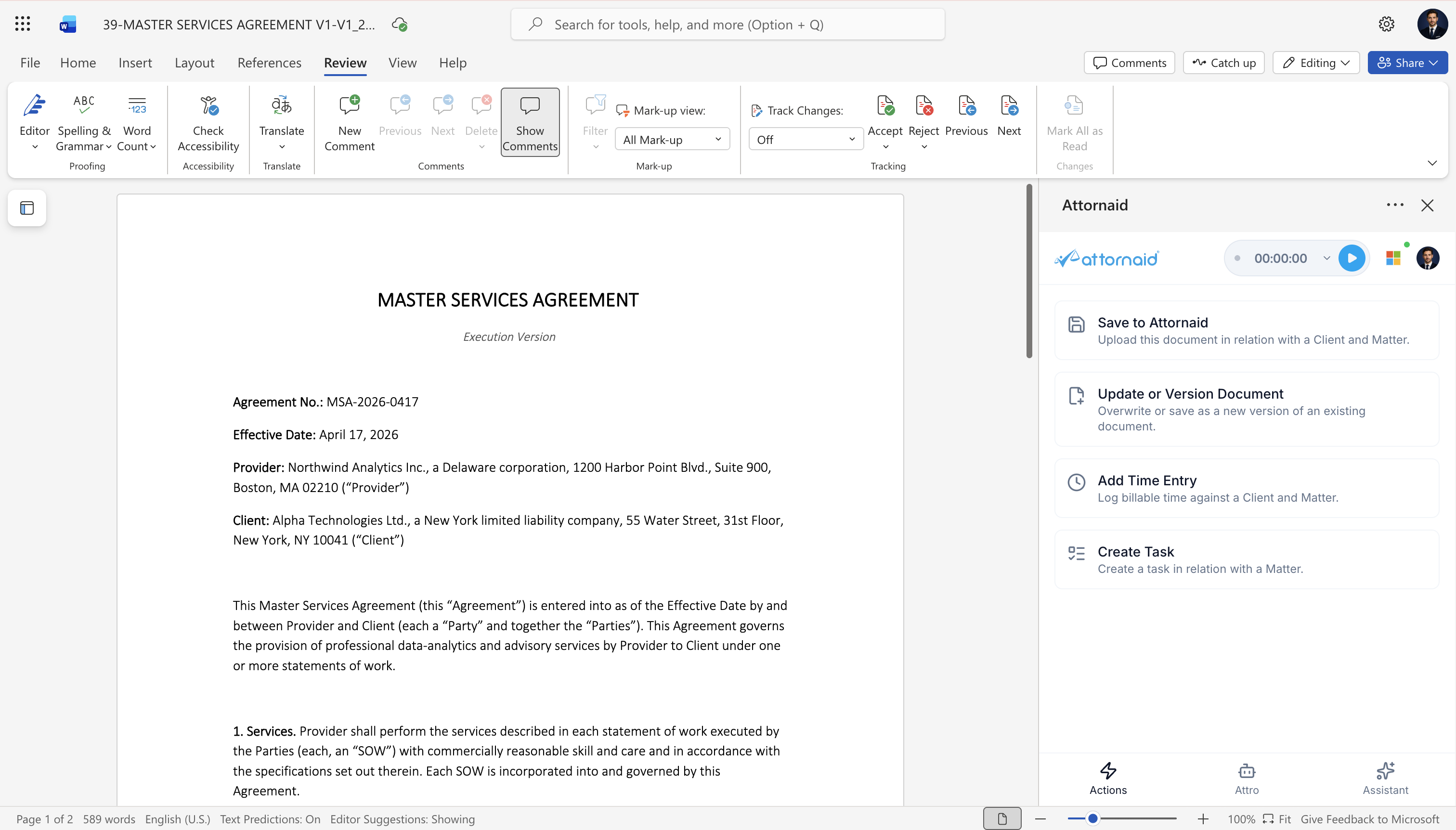
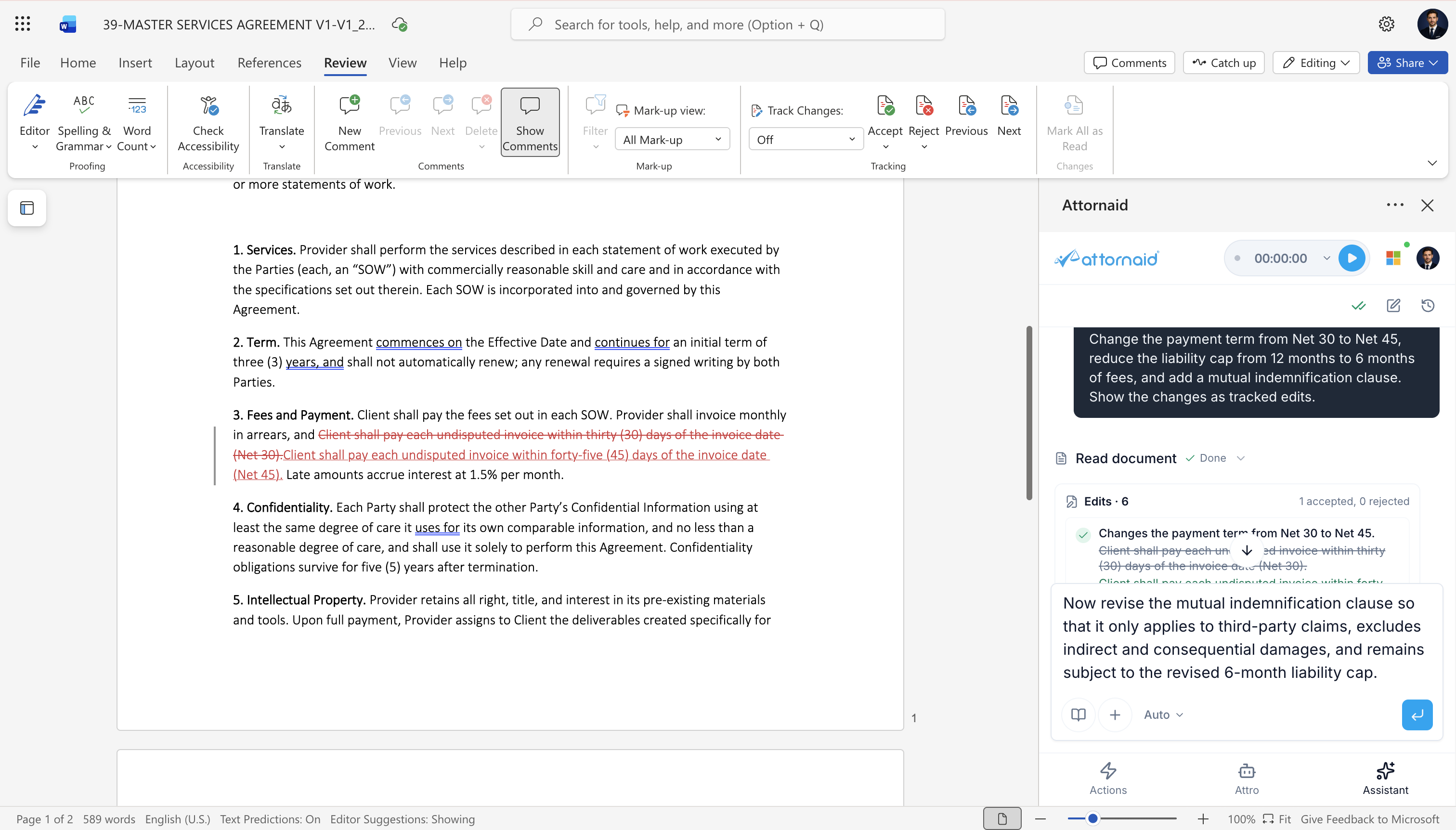
Screenshot 1 of 2
Work with documents already stored in Attornaid.
Bring SharePoint and OneDrive files into the workspace.
Continue working with Microsoft Word when needed.
Keep AI work connected to your existing document environment.
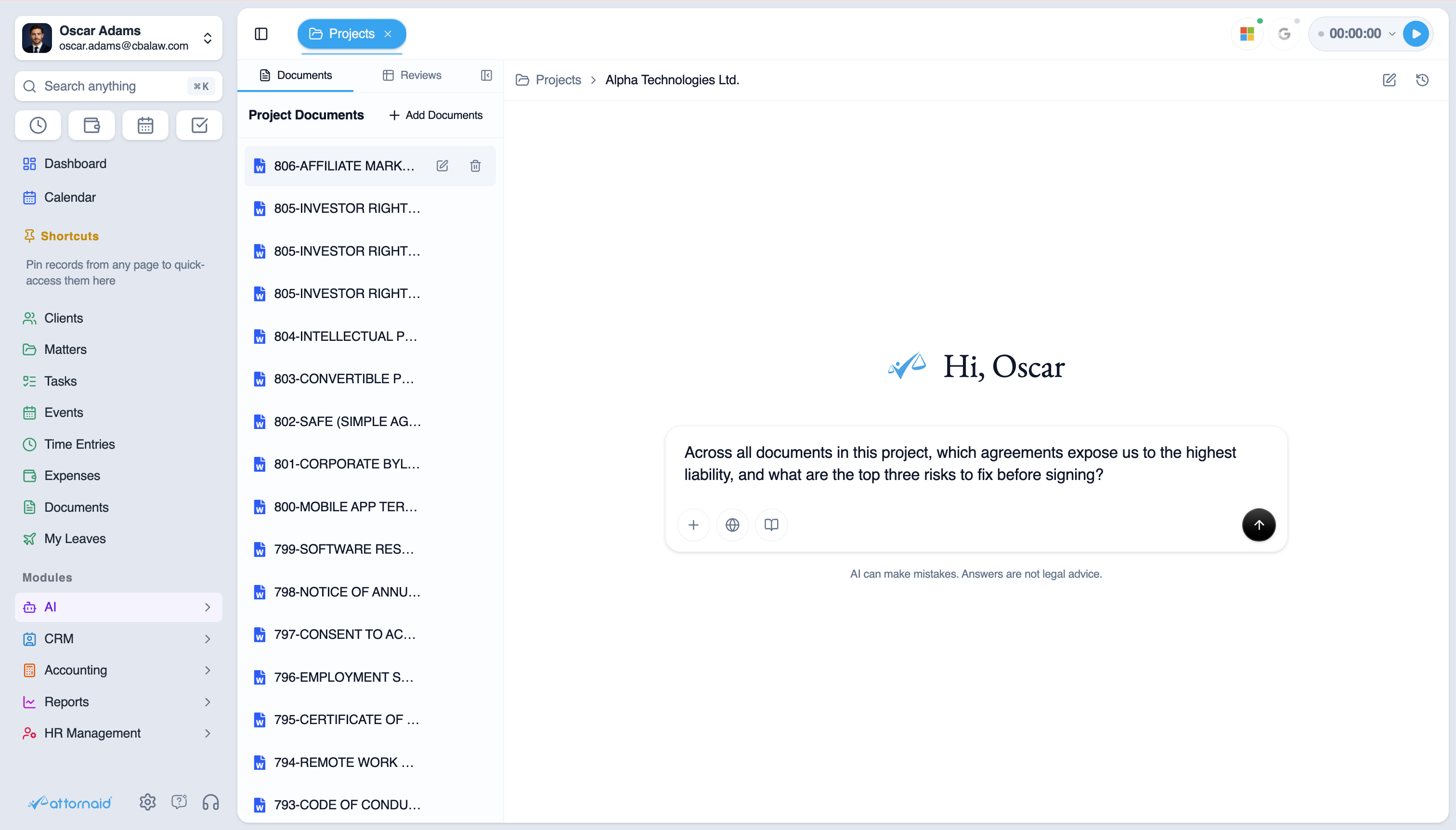
Keep the documents and conversations for a legal project together
Group related documents, AI conversations and reviews around a matter, transaction or other legal project. Return to the same context without rebuilding your work each time.
Keep related documents in one project.
Continue conversations with the same working context.
Bring reviews and document work together.
Reduce repeated setup across longer legal matters.
Put your legal documents to work
Review, draft and refine documents with AI while you stay in control.
Why legal teams use Attornaid instead of a standalone LLM
| Capability | Attornaid | ChatGPT / Claude / Gemini |
|---|---|---|
| Draft, summarize and analyze legal documents | Available | Available |
| Source-linked answers for verification | Available | Limited |
| Work with SharePoint, OneDrive and Microsoft 365 | Available | Limited |
| Matter and client context | Available | Not available |
| Firm-wide policies and instructions | Available | Limited |
| Repeatable legal workflows and playbooks | Available | Limited |
| Structured multi-document review | Available | Limited |
| Legal document editing and review workspace | Available | Limited |
| Connect AI work with matters, documents and activities | Available | Not available |
| Firm-wide governed AI workspace | Available | Limited |
Use AI as part of the legal workflow, not as a separate chat window.
Frequently Asked Questions
Answers about working with several documents at once, checking where answers come from, and editing with AI.
What can I do in AI Workspace?
You can ask the Attro Legal Assistant questions about legal documents, summarize content, compare versions, draft new documents and make controlled edits from one workspace.
Can I work with more than one document at a time?
Yes. You can attach multiple documents and ask questions or run comparisons across them.
Can AI Workspace show where an answer comes from?
Yes. Grounded answers can include source references so you can trace the response back to the relevant document content.
Can I edit documents directly with AI?
Yes. You can request changes in natural language and review the proposed edits before accepting or rejecting them.
Can I use documents already stored by my firm?
Yes. AI Workspace can work with documents from supported Attornaid and Microsoft document sources, as well as direct uploads.
Can I keep ongoing work organized?
Yes. Projects let you keep related documents, conversations and reviews together for longer-running legal work.